Demo for our support team of the new ticket inbox: smart tags, canned replies, the SLA timer. 10 minutes, then questions.
Companies, people and numbers in the example briefs are made up, unless they’re public facts like history or science.
The look Cue chose
Queue zero
A late-shift control room: graphite black, cool white type, one amber signal that glows like a timer about to run out
Type
Inter Tight and Inter
Colours
inkpanelchalkslateambermintpaper
Motion
Snappy and precise, like a UI responding. Ease out fast (expo-out), 0.6 to 0.9s. Headlines rise word by word from a mask. Screens slide in from the right and settle. Callouts pop in one at a time with a short amber glow. Backgrounds and type never drift once settled; one pulsing dot at most.
Transitions
Mostly a quick push left (0.6s) between demo steps, like moving to the next ticket. A fade into and out of quiet statement slides. A wipe for before and after. Paper or amber field slides arrive with a hard cut.
Slide by slide
8 slides, with what the presenter says. Highlighted words are cues: saying them makes something on the slide move.
1
Cover
Opens with a fade
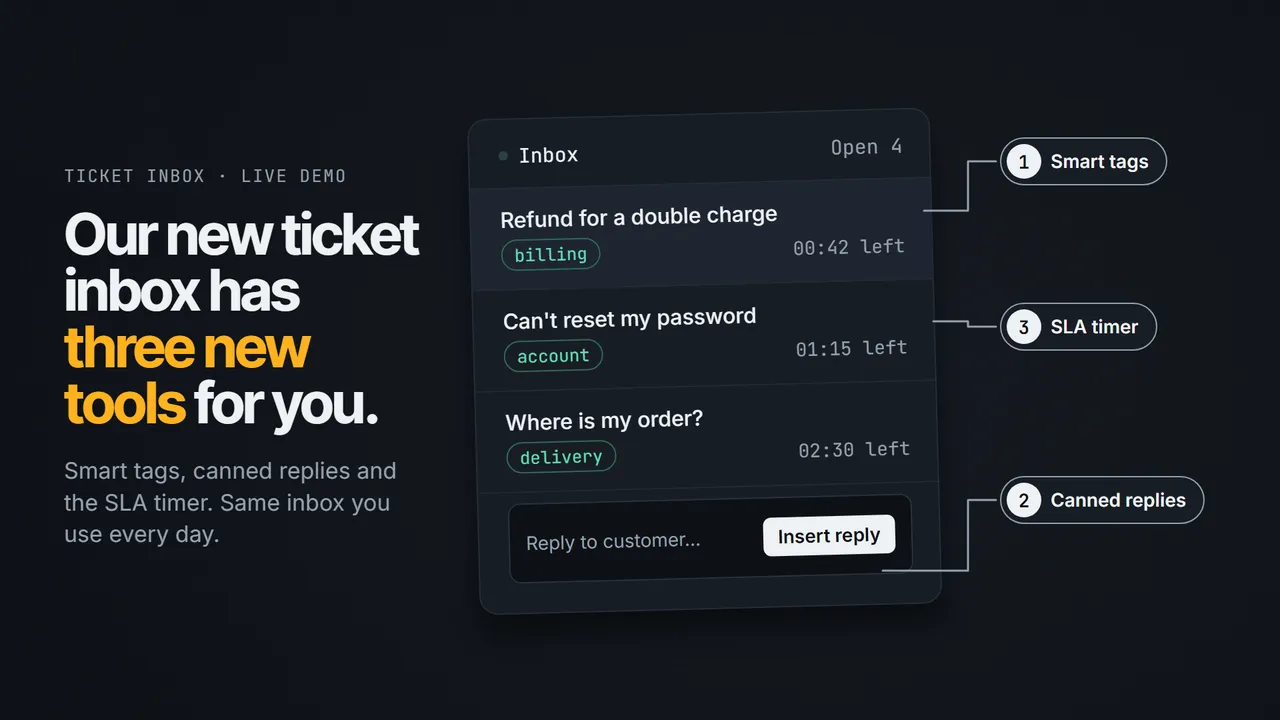
Hi everyone, thanks for joining. This is the ticket inbox you use every day, with three tools added. They are smart tags, canned replies and the SLA timer. I'll show each one on screen.
2
Today's plan
Enters with a push
This will be short. First we do about ten minutes of demo, one tool at a time. Then the next ten minutes are for your questions. So keep anything you want to ask, and we'll get to it.
3
Smart tags
Enters with a wipe
Let's start with smart tags. Here's a ticket like the ones you see every day. I won't explain it on a slide. Let's look at it in the live inbox.
4
Canned replies
Enters with a slide over
When a customer asks something we answer all the time, you don't need to type it out again. Pick a saved answer from the list and it fills the reply box for you. You can still change the words before you send it. Let me show you on the live screen.
5
SLA timer
Enters with a zoom through
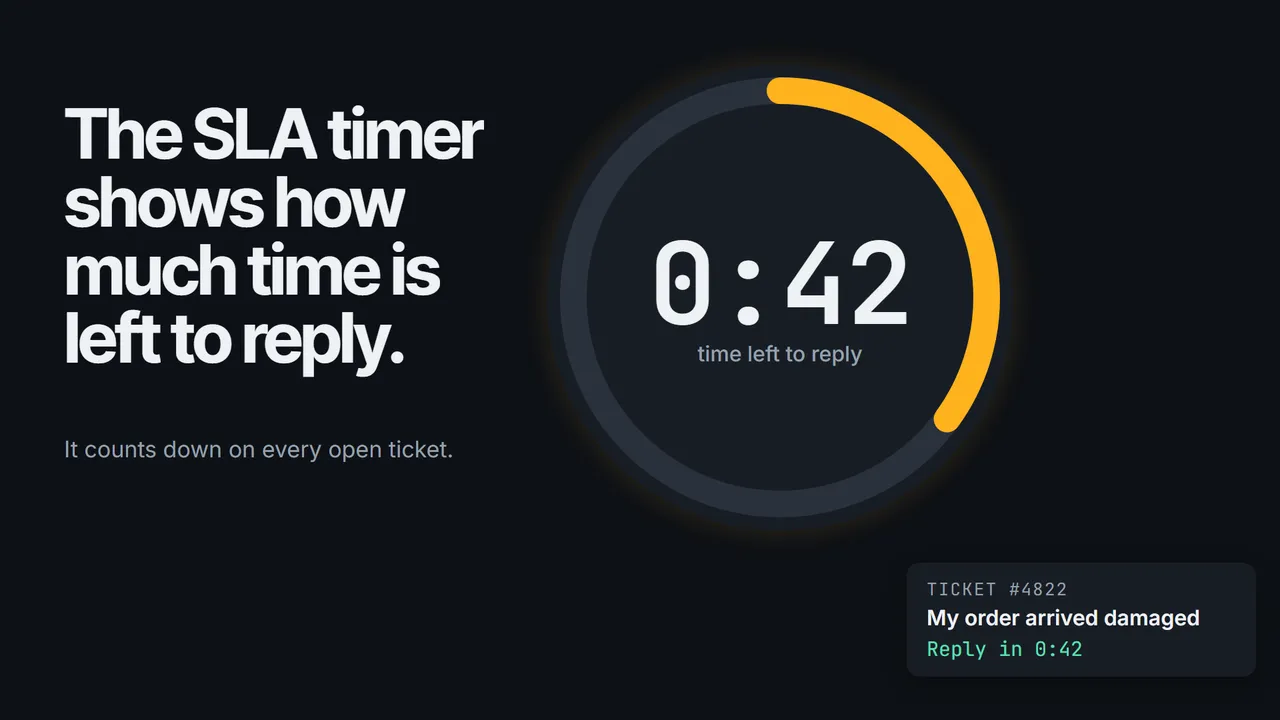
Every ticket now has a timer on it. It shows how much time left you have to reply. As the ring runs down, you can see which tickets need you first. Let's look at it on the live screen, so you can see how it helps us hit our response target.
6
All together
Enters with a dissolve
These three tools are not separate screens. They all sit on the ticket you already work on. First you see the tags at the top. Then the timer in the corner tells you how long you have. And the reply box is where your saved answer goes.
7
Next shift
Enters with a split
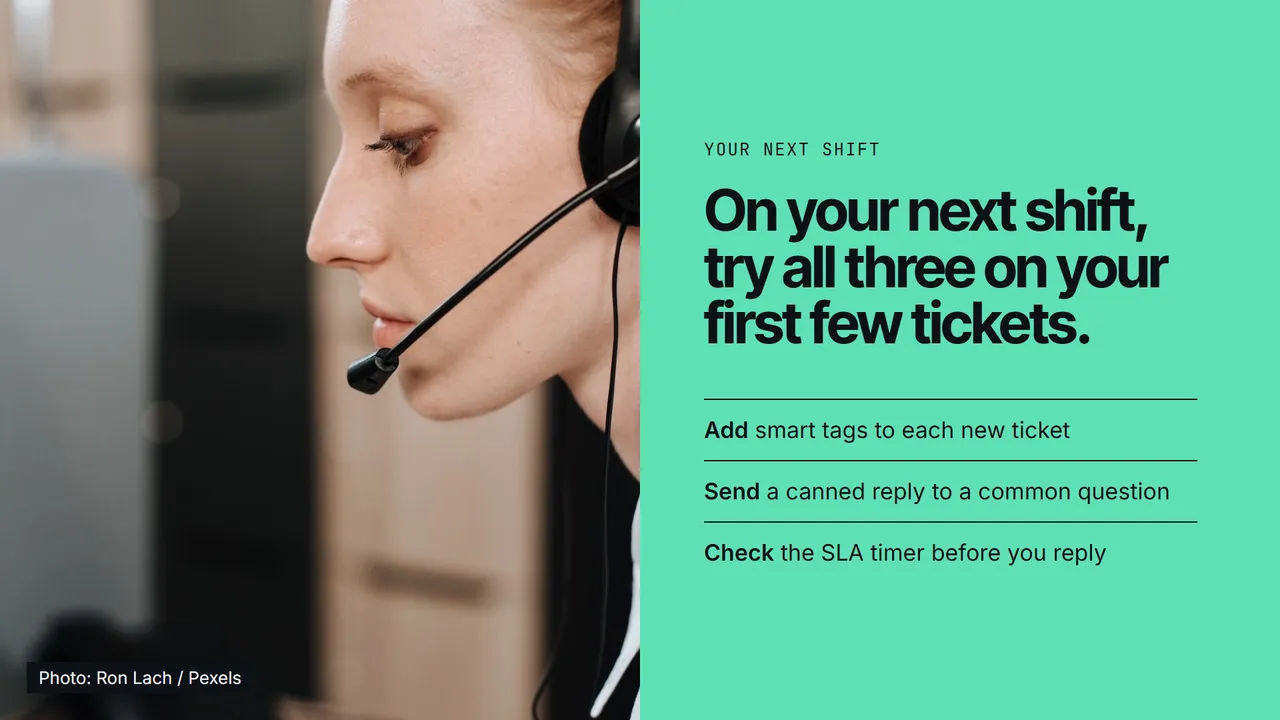
So here is what I'd like you to do. On your next shift, try all three tools on your first tickets. Add the tags, send one saved reply, and keep an eye on the timer. If something feels odd, tell me and we'll sort it out.
8
Questions
Enters with a fade
That's the demo done. We have ten minutes left, so ask me anything. It can be about tags, saved replies or the timer. No question is too small.
Make one like it.
Tell Cue what you’re presenting and who’s listening, or give it an old deck. Early access is open: 100 free credits for everyone who joins before 30 November.